Cancel or refund an order
When a customer cancels, sends something back, or you can't fill an order. You end up with the money back with the customer, the order marked, and the parts back on the shelf.
Before you start
- Refunds go back through the payment the customer used. Stripe and PayPal refunds happen straight from Kaniva. A cash payment needs paying back by hand.
- Only items that track stock can be put back on the shelf.
The flow
- StartAn order needs cancelling or refunding
- 1Open the order from Sales → Orders
- Cancel the whole order, or refund some of it?Cancel
- Open More and click Cancel order…
- Leave Cancel and refund chosen and Put the items back in stock ticked
- Click Cancel order and confirm
- Done
Refund- Refund it, as below
- 2Open More and click Issue refund…
- 3Under Items, set how many of each item to refund, and untick Back in stock for any that aren't coming back
- 4Add Shipping or an Other amount if needed, and a Reason
- 5Leave Notify customer via email ticked, or untick it
- 6Click Process Refund and confirm
- TipRefunded in Stripe or PayPal instead? The order asks you to choose the items
- DoneThe customer has their money back and the parts are on the shelf
Step by step
1. Open the order
Find the order on Sales → Orders (search by order number, customer or product) and open it. Pending and cancelled orders are hidden on the list until you pick that status.
The More button at the top right holds everything on this page. It only shows what the order allows:
- Cancel order…: pending or processing orders.
- Issue refund…: any paid order, from processing to shipped or completed, until it's fully refunded. A paid order that was cancelled without a refund shows it too.
- Put items back in stock…: orders that can no longer be cancelled.
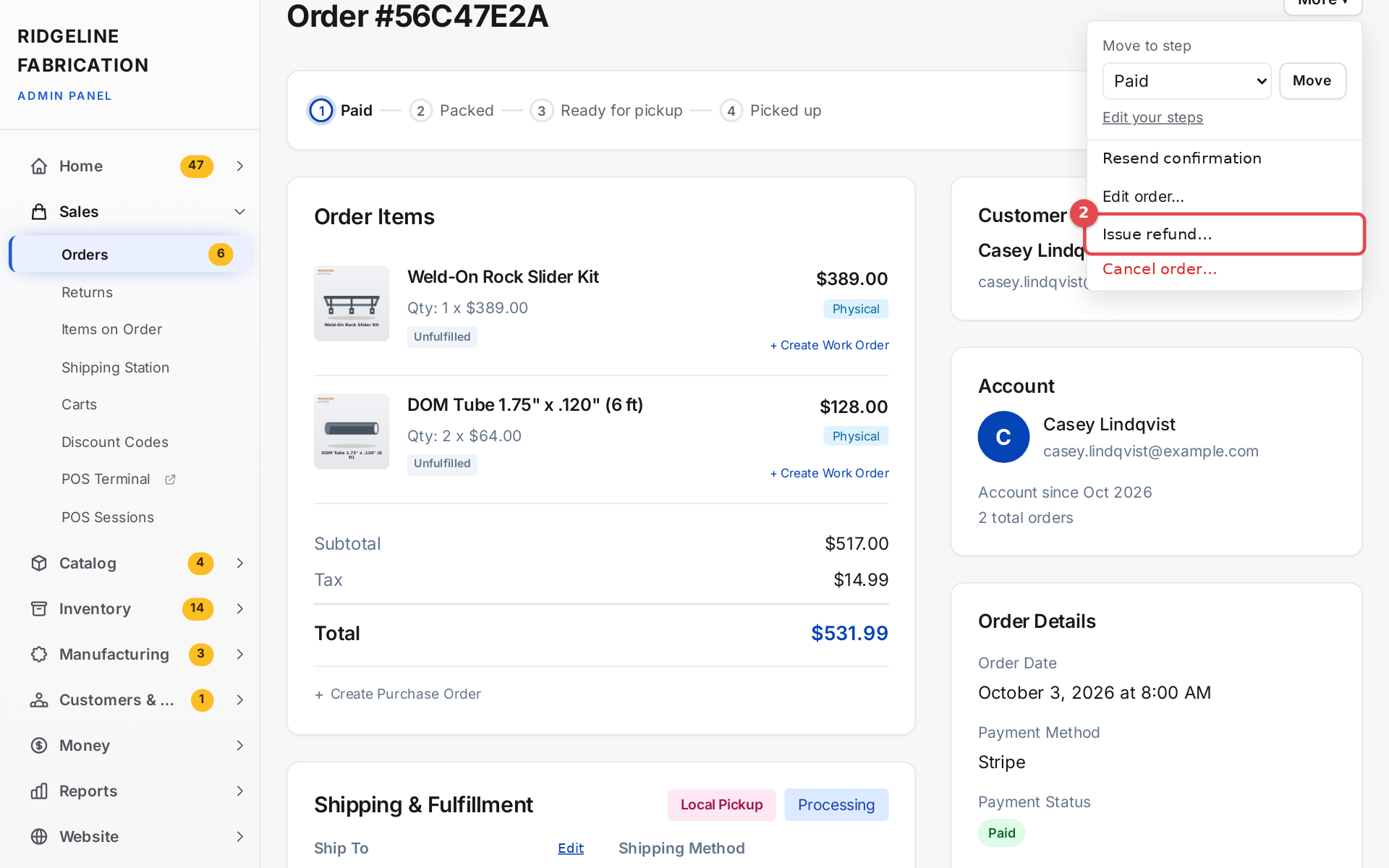 The More menu on an order
Cancelling an order
Open More and click Cancel order…. The Cancel order form opens further down the page.
- Paid orders are refunded as they're cancelled. Cancel and refund $… is chosen, for everything still refundable. It goes back through Stripe or PayPal (a cash order is recorded, and you pay it back by hand). If Stripe or PayPal turns the refund down, nothing is cancelled.
- Cancel without refunding is for money already paid back another way. Only the owner, and the roles ticked under Cancelling paid orders on Settings → Order steps, see it (admins to start with).
- Unpaid orders have nothing to refund, so the form just cancels.
- Put the items back in stock is ticked. Untick it if the stock shouldn't come back.
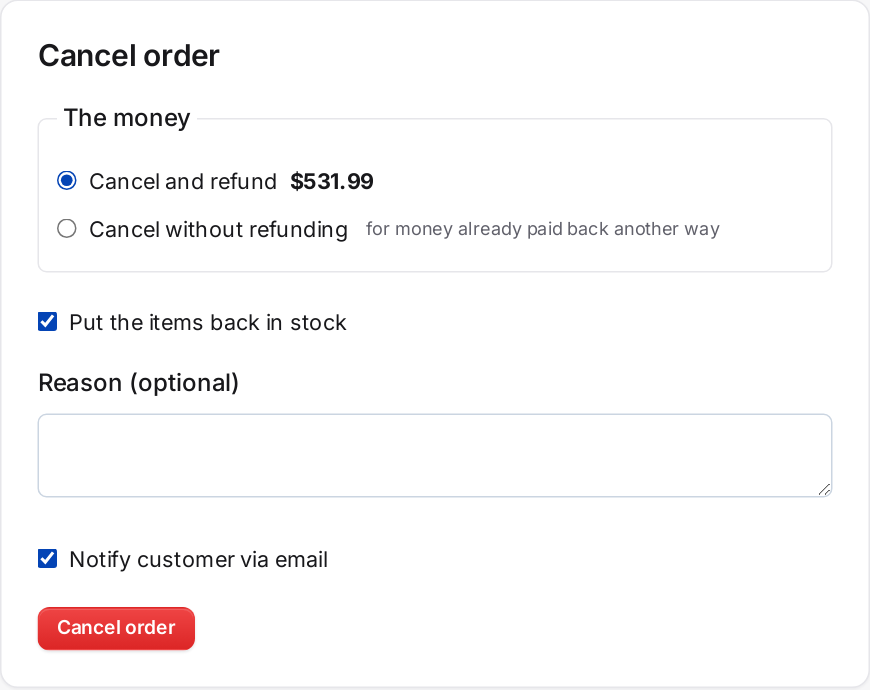 The Cancel order form
Add a Reason (optional), leave Notify customer via email ticked or untick it, and click Cancel order. The order becomes Cancelled, download access is turned off, and the cancel shows in the order's refund list. The stock goes back to each item (a variant's own stock, or the product's; with Advanced Inventory, the item's home bin).
An order a dropship supplier already has can't be cancelled. Suppliers don't take back an order they've confirmed, so the form says so. Refund it instead, and tick Ask {supplier} not to ship if you'd like them to try (see Purchasing).
Advanced: set order status and the Orders list's Change status to… won't set Cancelled or Refunded on a paid order, since that would skip the refund.
2. Open the refund form
Open More and click Issue refund…. The Issue Refund form opens further down the page.
3. Choose the items
Items lists everything on the order that hasn't been refunded yet, with its price each including tax ("of 2" is how many are left to refund). Set how many of each to refund. They all start at 0.
Items that track stock have Back in stock, ticked. Untick it for anything not coming back (damaged, or kept by the customer). Kaniva remembers what has gone back, so an item is never put back more times than it was sold.
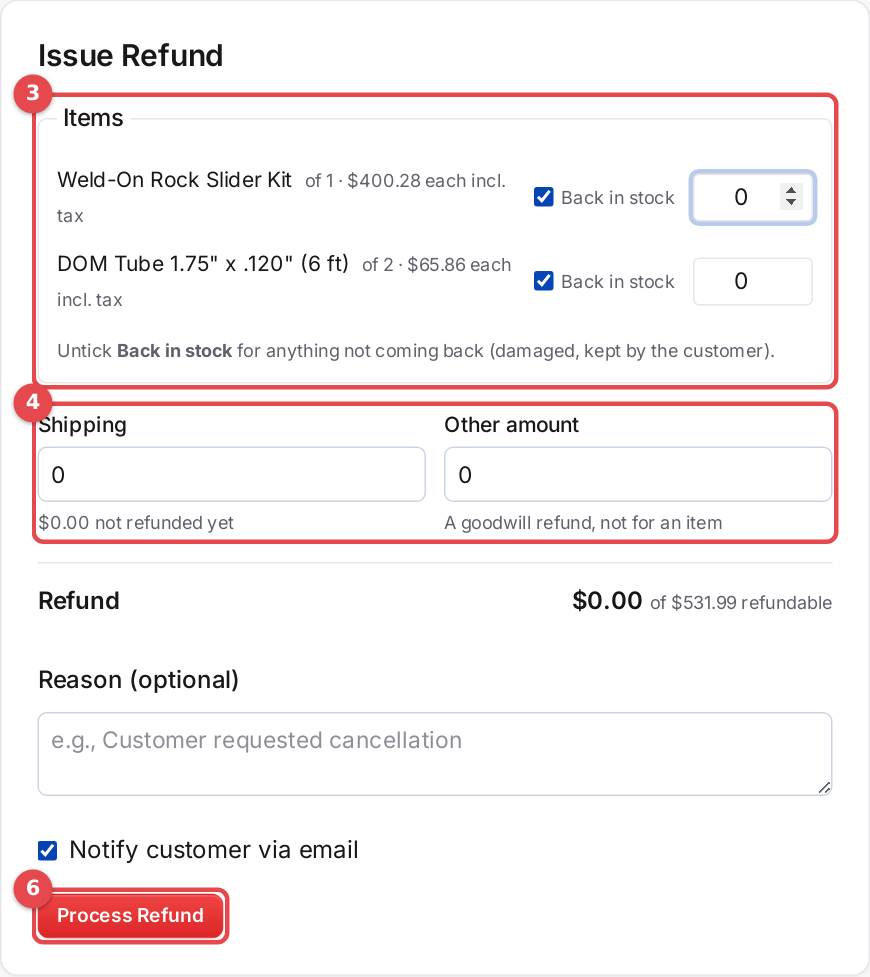 The Issue Refund form
4. Add shipping or another amount
- Shipping: how much of the shipping charge to give back. The line under it says how much hasn't been refunded yet.
- Other amount: money back that isn't for an item, such as a goodwill refund for a late delivery.
Refund at the bottom adds it up. Choosing everything that's left refunds exactly what's left, to the cent. On a deposit order, you can only refund what has actually been collected.
Add a Reason (optional): it shows on the order and in the customer's email.
5. Tell the customer
Notify customer via email is ticked: the customer gets a refund email with the amount, the items and shipping refunded, and your reason. Untick it to send nothing.
6. Process the refund
Click Process Refund and confirm. Kaniva refunds the payment through Stripe or PayPal (Venmo payments go back through PayPal), and the message at the top says how much was refunded, how many items went back in stock and the refund ID.
- A full refund marks the order Refunded and turns off its downloads.
- A partial refund leaves the order as it was. An item refunded in full stops downloading, and a builder's royalty only counts the units kept. You can refund more later the same way.
The Refund Information card lists every refund: when, how much, where it was made (the order page, the register, the API, or your Stripe or PayPal dashboard), who made it, and which items and shipping it covered.
Accounting and the sales tax reports count a refund on the day it was made, not the day of the order. Refunding a September order in October lowers October's income, and September's stays as it was.
Everything is recorded in the order's Activity card.
Refunded in Stripe or PayPal
If you refund in your Stripe or PayPal dashboard, Kaniva records the refund on the order automatically, but Stripe and PayPal don't say which items it was for. The order then shows Refunded $… in the Stripe dashboard: choose the items. Set how many of each item it covered, leave Back in stock ticked for those coming back, and click Save items. No money moves. If no items were involved, click Save items with everything at 0.
For a return after the order is complete with no refund, use More → Put items back in stock…. It shows once the order can no longer be cancelled.
If something goes wrong
- "Payment provider refund failed". Stripe or PayPal turned the refund down, and nothing was recorded. Check your payment dashboard, then try again.
- The order was paid in cash. The message says manual refund required: Kaniva records the refund, and you pay the customer back yourself.
- Cancel order or Issue refund… is missing. The order is in a state that doesn't allow it (for example it's already fully refunded). Advanced: set order status at the bottom of the side column can set the status by hand, with Put the items back in stock (when cancelling, failing or refunding). Use it only to fix an order.
- No Put back in stock list. None of the items track stock, or everything has already gone back.
- Several orders at once. On the Orders list, tick them and use Change status to… with Put items back in stock (cancelled, failed or refunded). This changes the status only; it doesn't refund money.